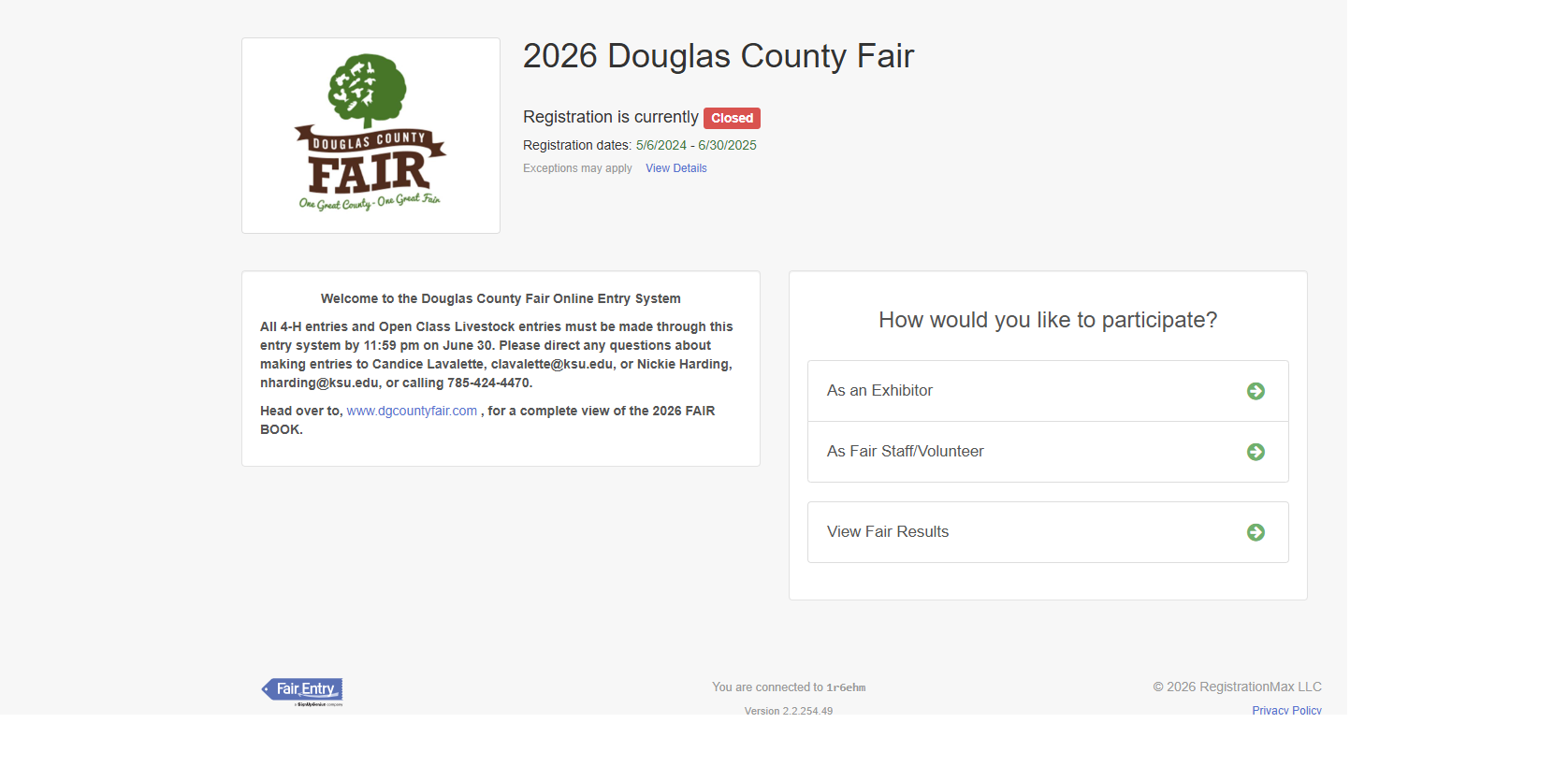
Sign in with your 4-HOnline username and password.
Hint: Your username is the email address you use to sign in to 4-HOnline. If you cannot remember your password, visit 4-H Online homepage and click the ‘I forgot my password’ button.
You will receive a confirmation email once you have completed the entry process. Entries can be edited through June 30. Fees will only be charged once.
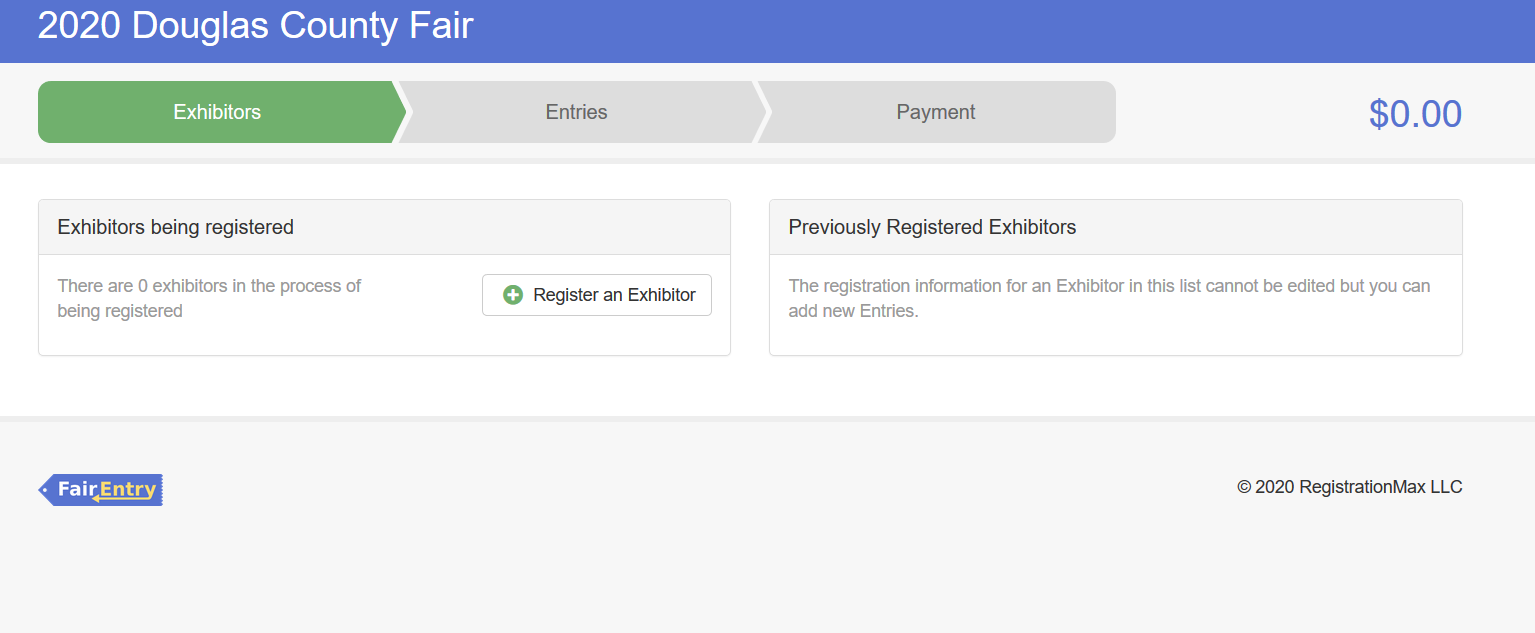
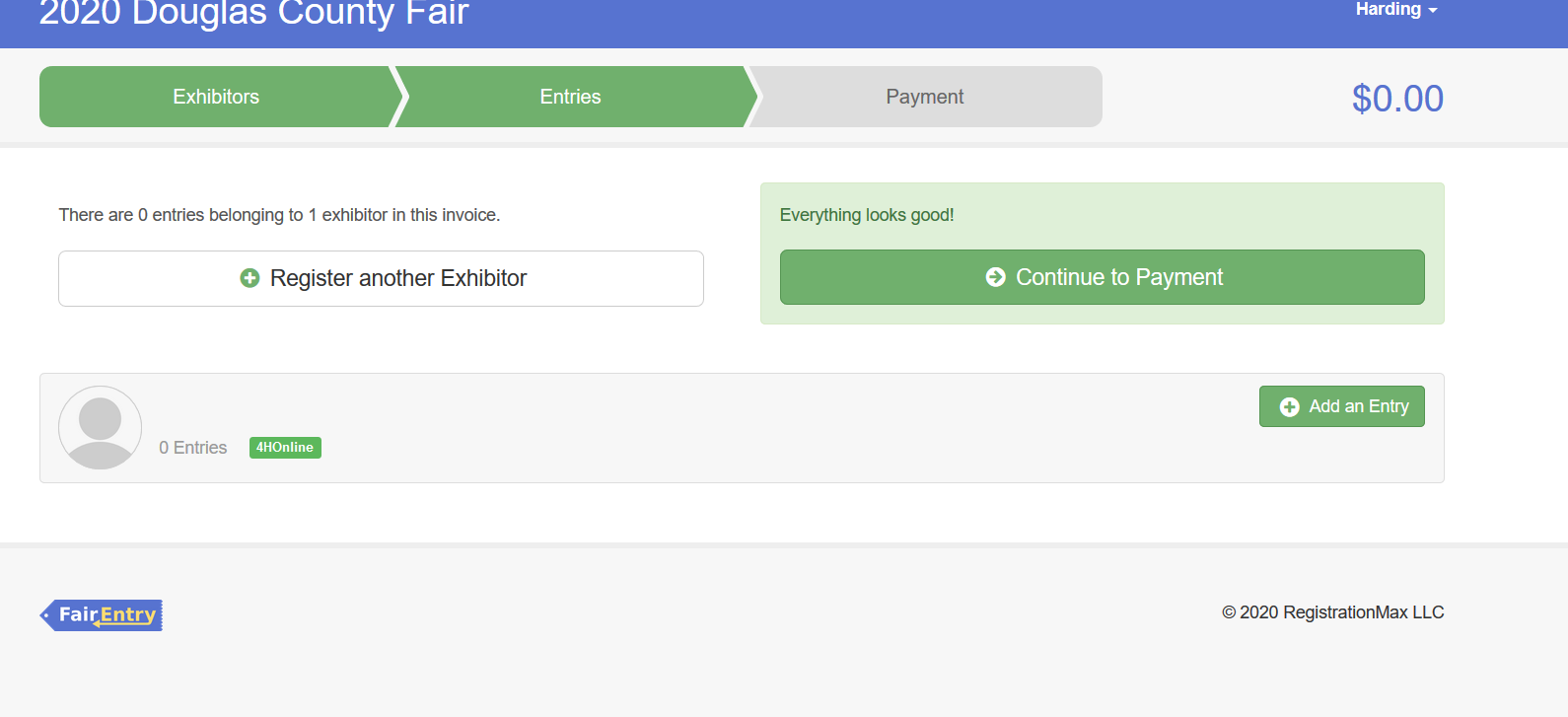
Click the Register an Exhibitor button.
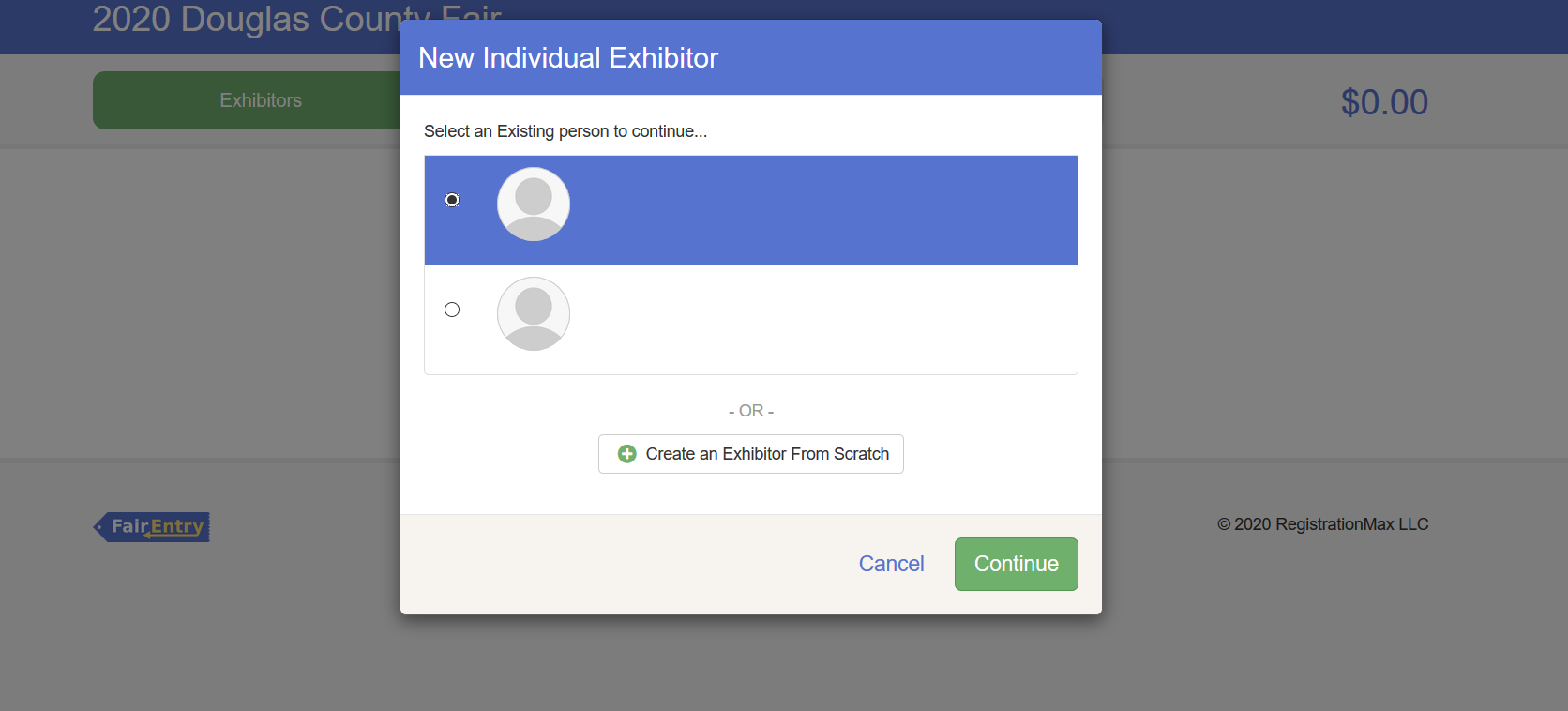
Click the exhibitor for which you would like to make entries.
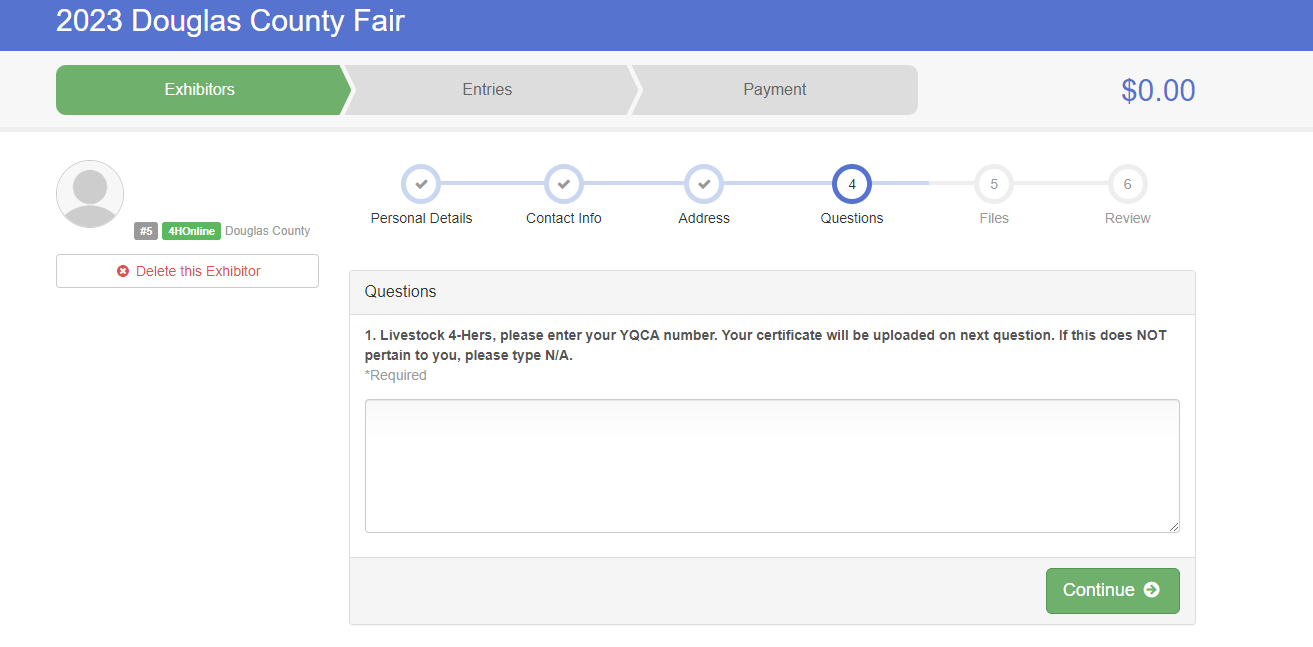
If applicable, enter YQCA number
Livestock exhibitors showing beef, dairy cattle, goats, rabbits, poultry, sheep, or swine must enter their YQCA number. Your certificate will be uploaded in the next question. If this does NOT pertain to you, please type N/A.
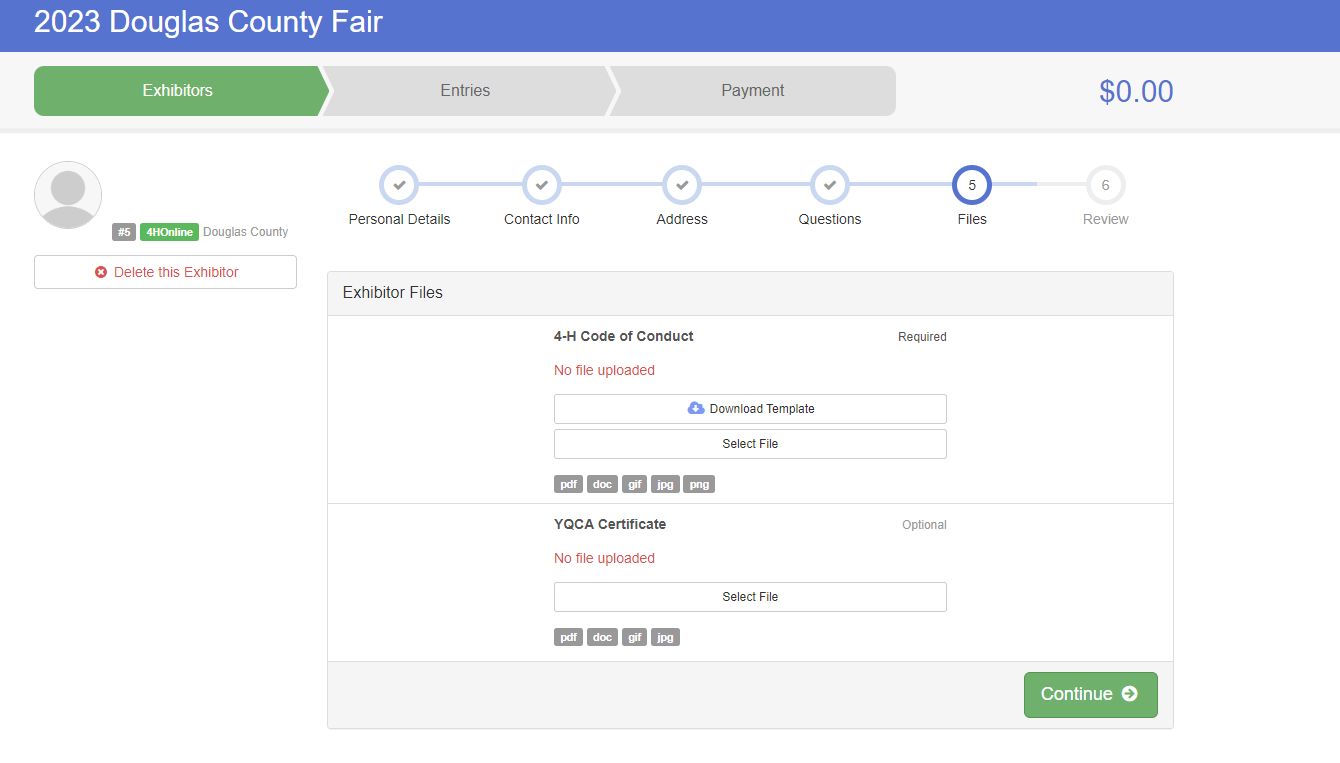
Download, sign, and upload the 4-H exhibitor code of conduct and your YQCA Certificate if you are a livestock exhibitor.
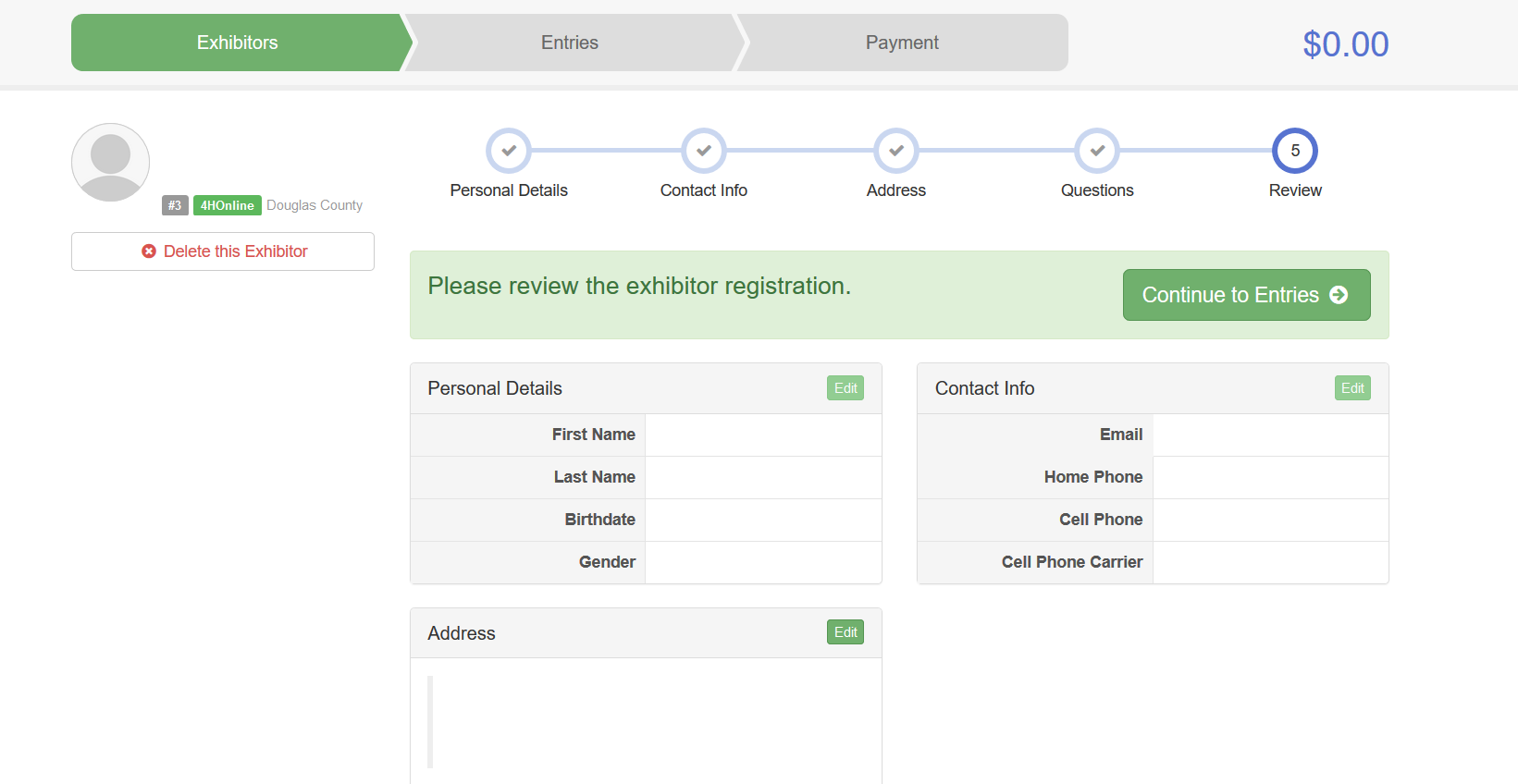
Review all contact information to make sure it is correct. Click the continue to entries button.
Click the 'add an entry' button.
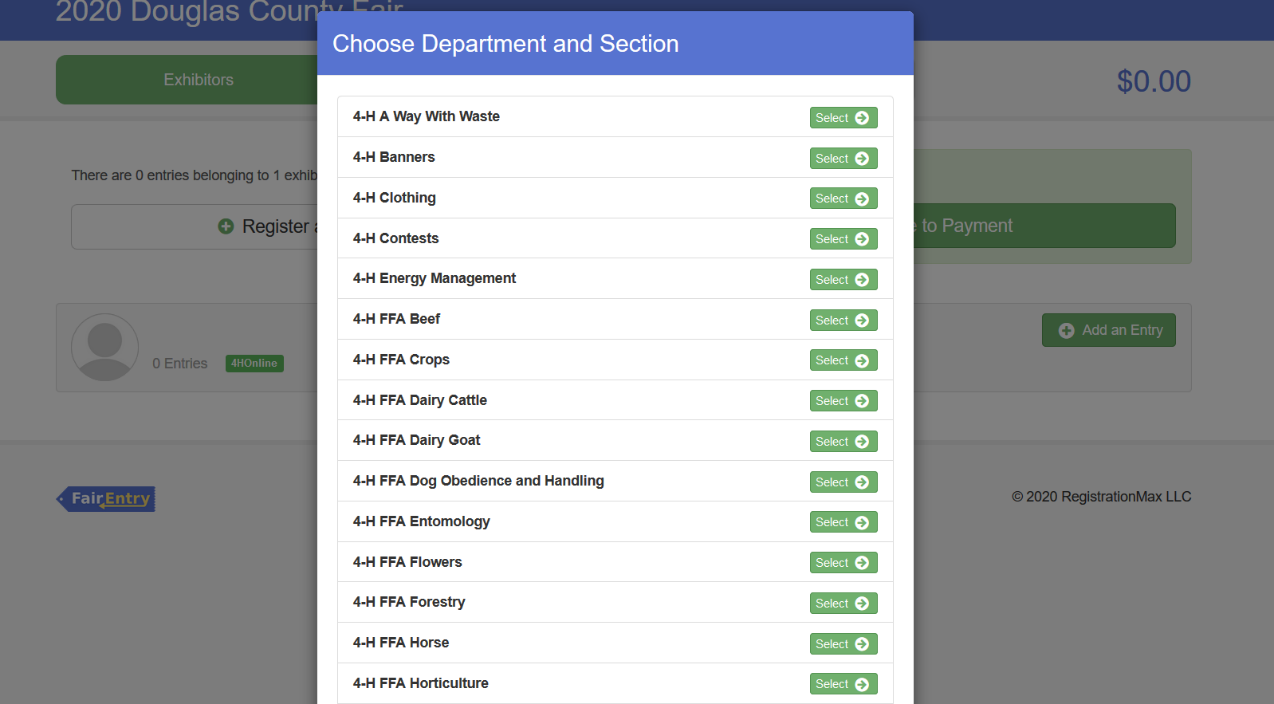
Select the department you would like to make an entry for.
If you will not be making entries for animals, skip to step #10.
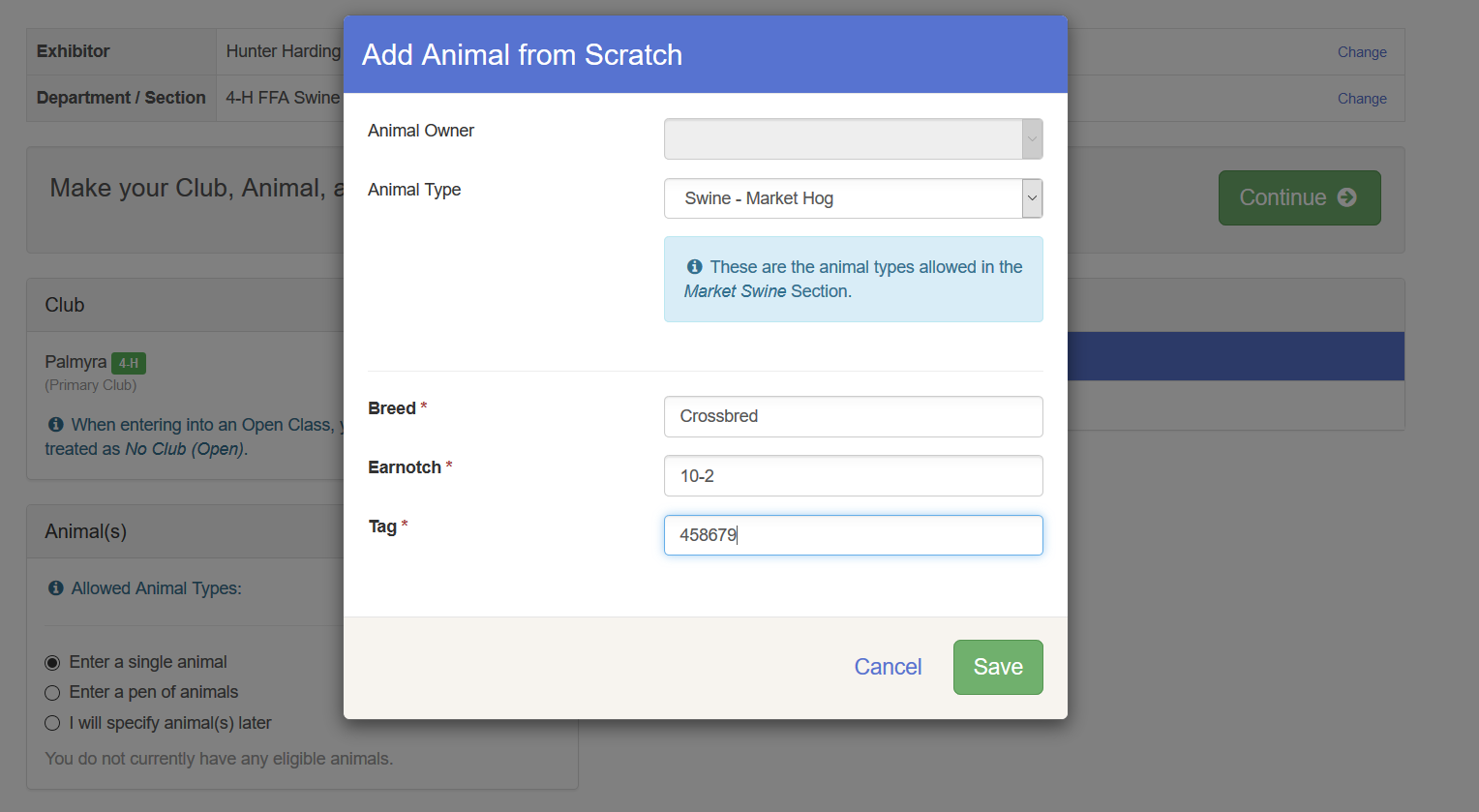
You will be required to ‘add an animal from scratch’ for livestock and animal projects.
Hint: For swine without a 4-H EID tag, re-enter the ear notches in the tag field. Sheep and goats without a 4-H EID tag can use the scrapie tag number in the tag field.
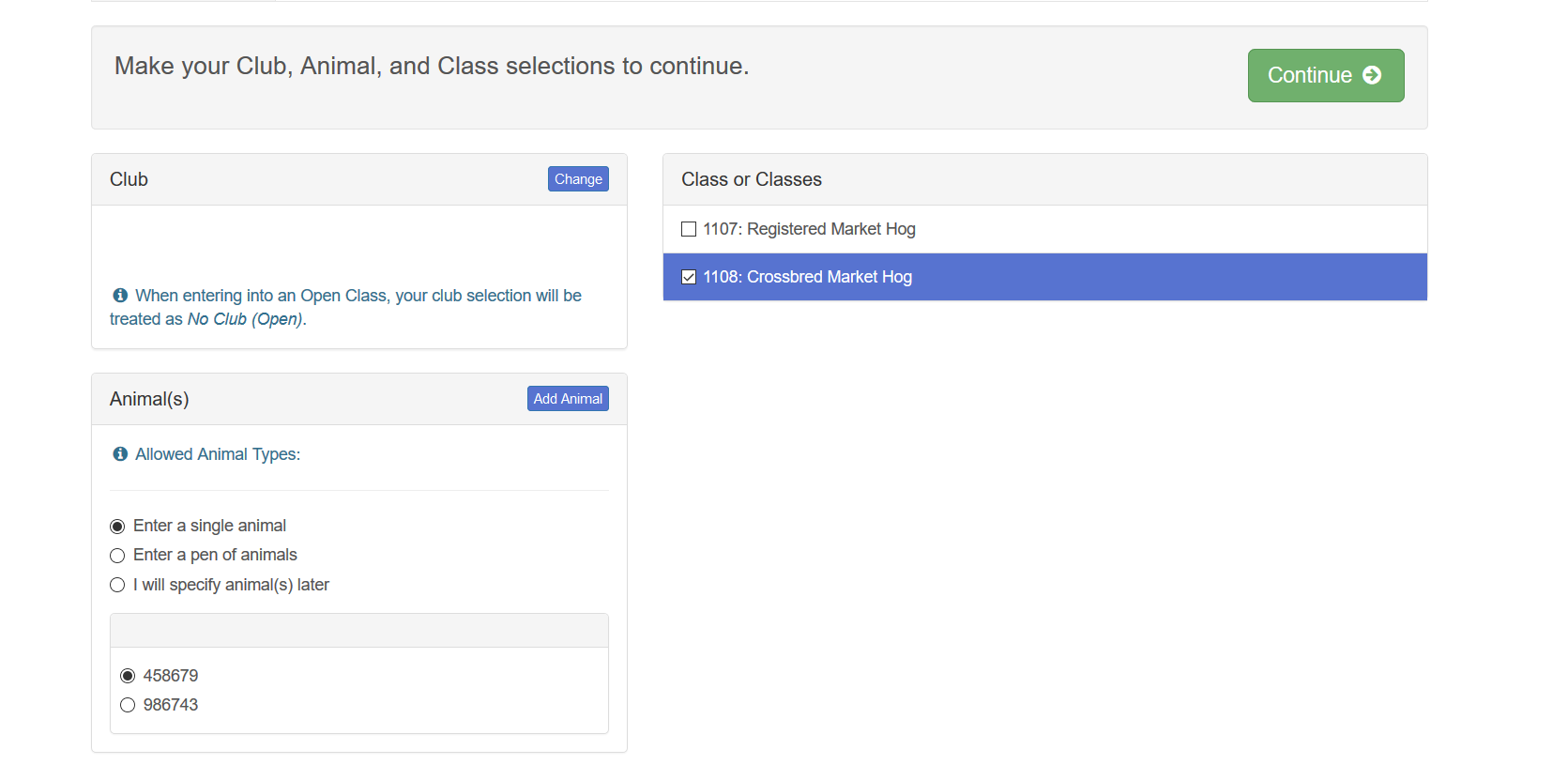
Click on the tag number for the animal you would like to enter and the corresponding class name. Click continue.
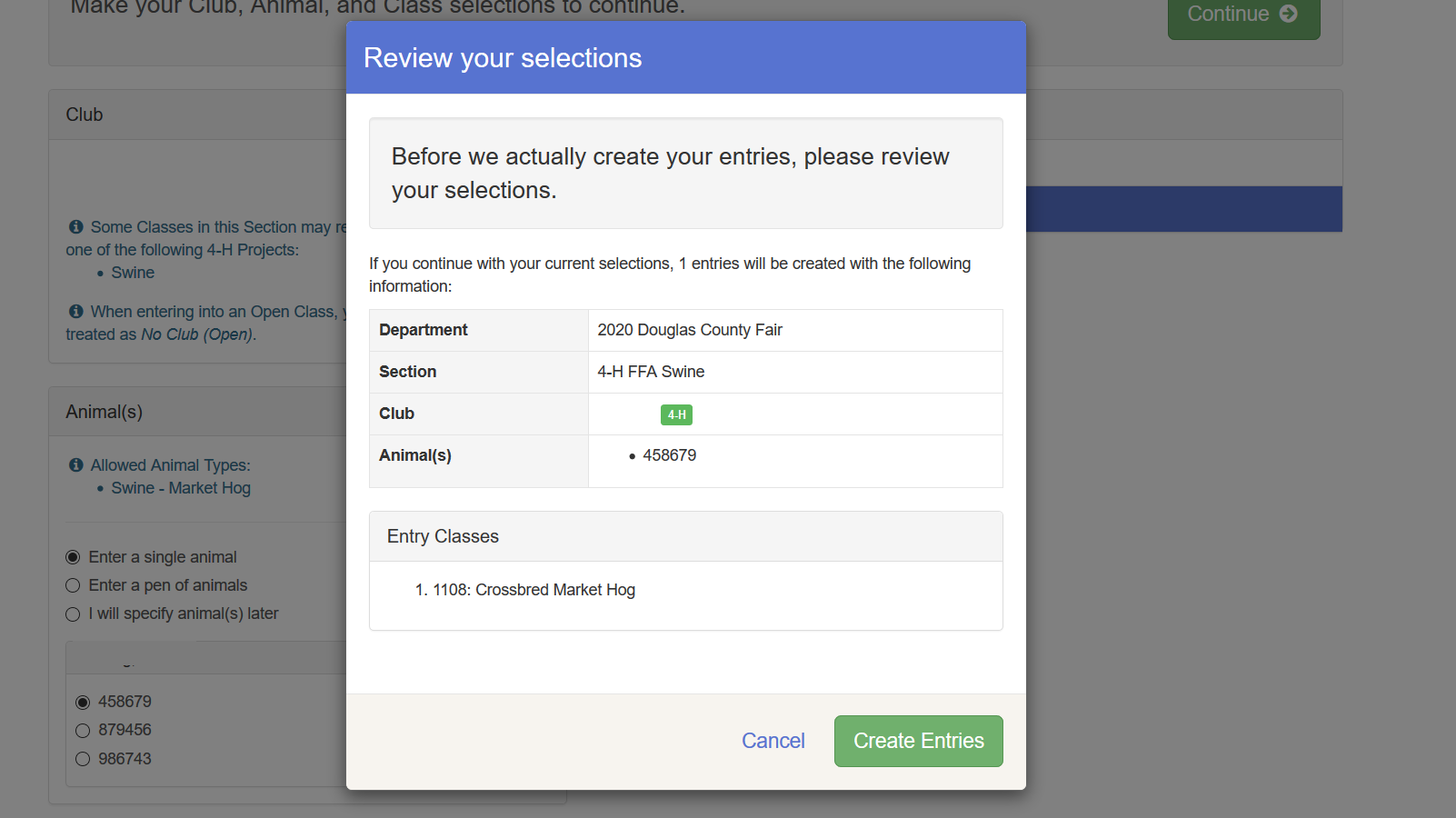
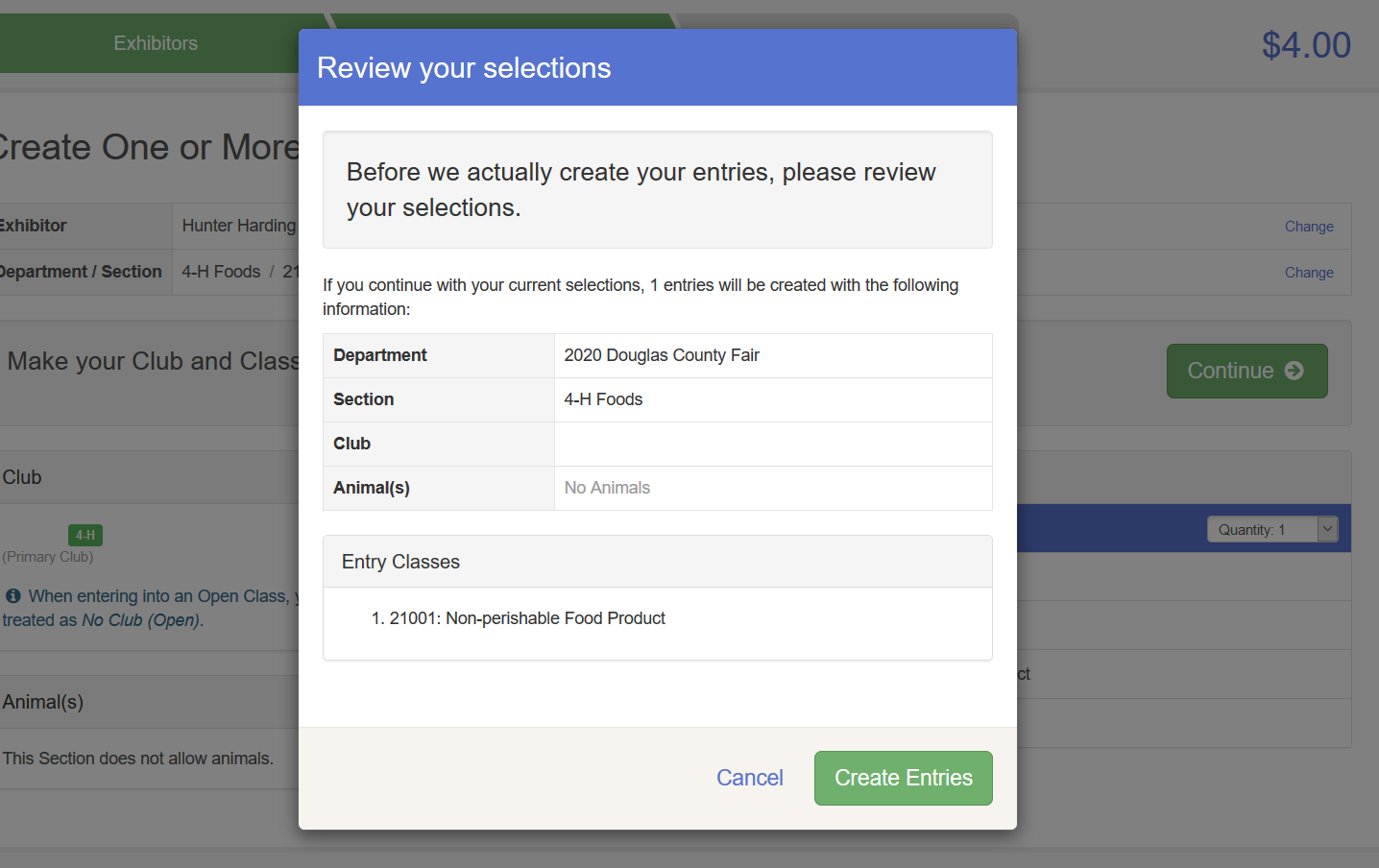
Review your selections. Click Create Entries.
Below is an example of a static entry.
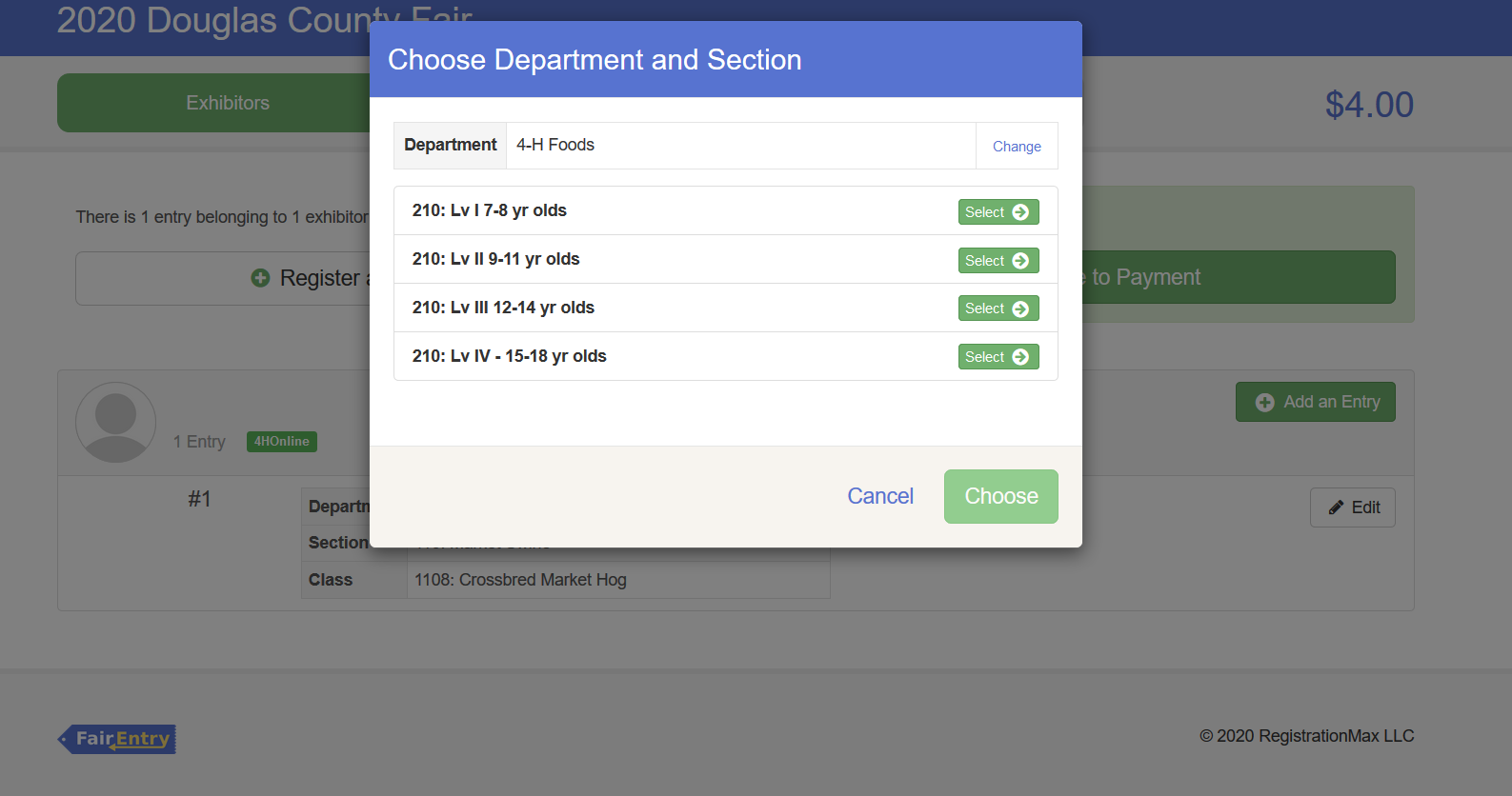
To make additional entries, click on Add an entry. Find the corresponding department.
Hint: Remember, 4-H age is determined by Jan. 1, 2025.
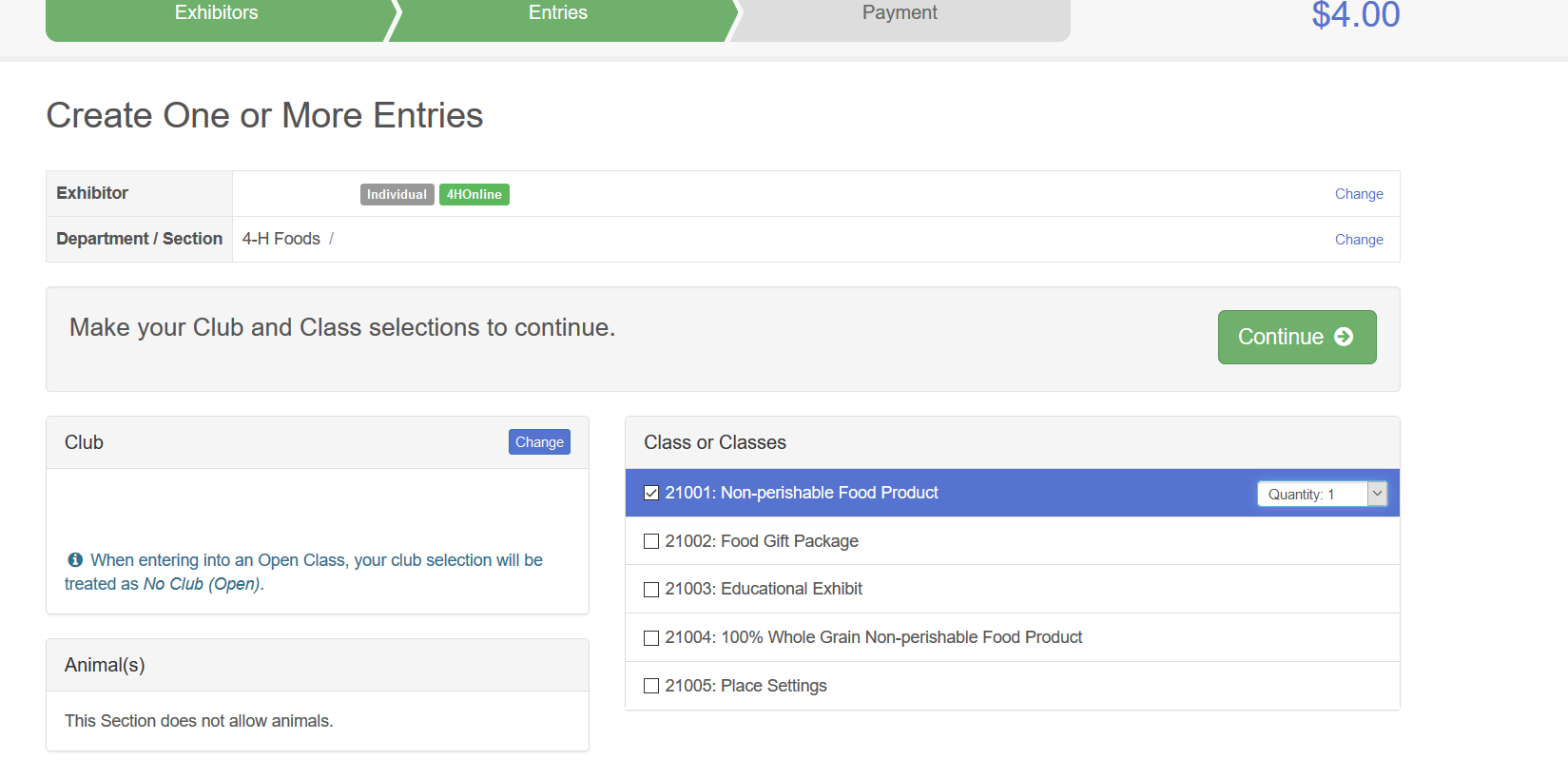
Click on the class you would like to enter.
Hint: Adjust the quantity to reflect the total number of entries you want to make for that class.
Review your selections. Click 'Create Entries'
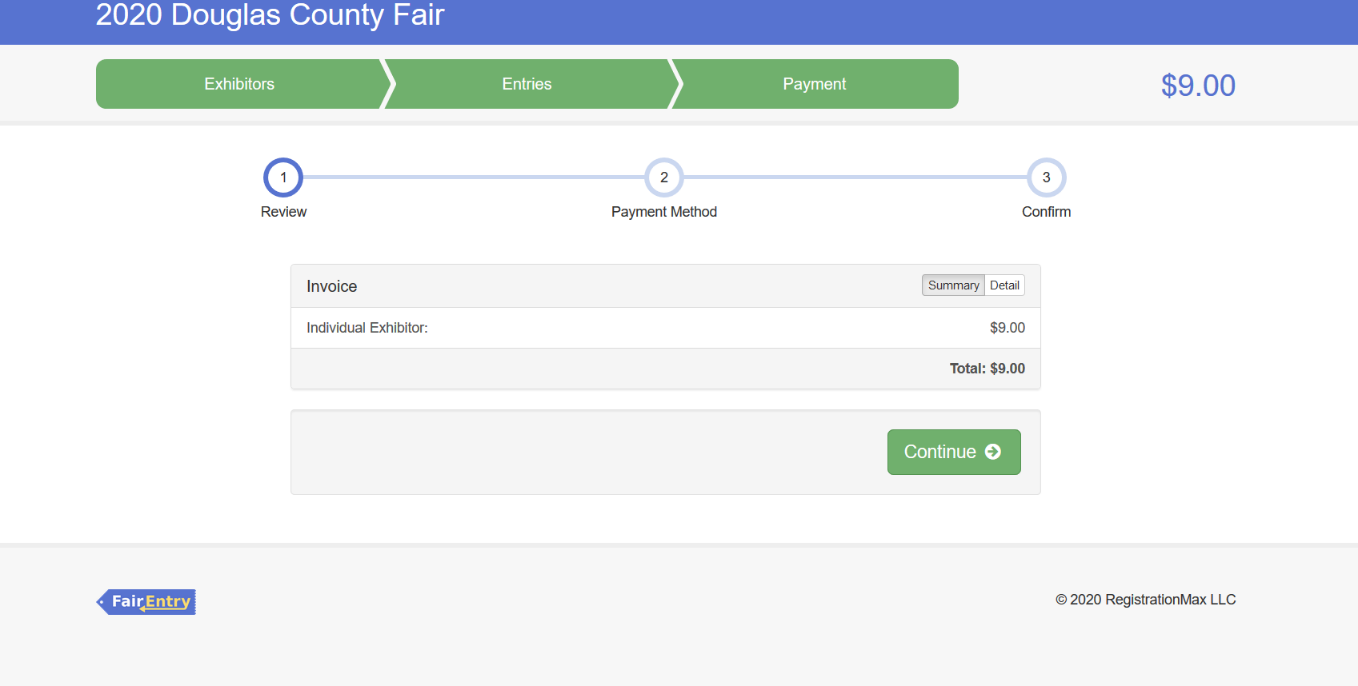
To complete the checkout process, be sure to pay.
The user fee for the system is $7.
Bedding and vet check for bucket calf is $13.00, and for large cattle is $24.